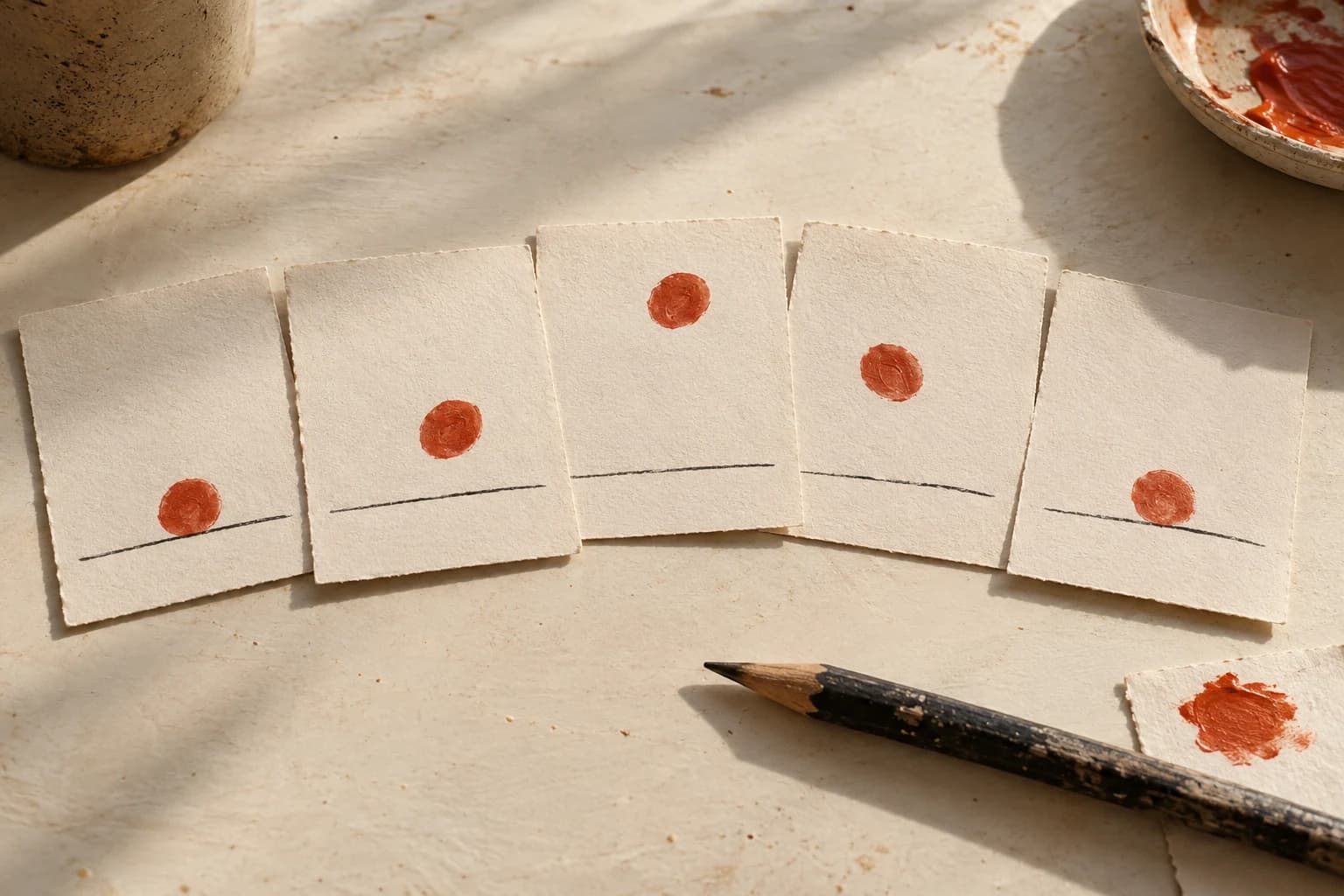
One dot, a few frames, and a motion you can make your own. AI-generated editorial illustration.
A bouncing dot is a surprisingly good first animation. There is no character to design and no story to explain. You can spend your attention on one question: what makes the movement feel right?
Brush Ninja Animation Maker gives that experiment a home in your browser. Its core drawing and GIF workflow is free and does not require an account. The app is made by Ben Gillbanks, who built it around accessible, playful animation.
Brush Ninja Animation MakerBen GillbanksFor this first session, keep the goal modest: make a dot move, change its timing, and save a version you can return to. The exercise below is an original Biltib prompt. You can work with a mouse or whatever drawing input you already have.
1. Choose a motion you can describe in one sentence
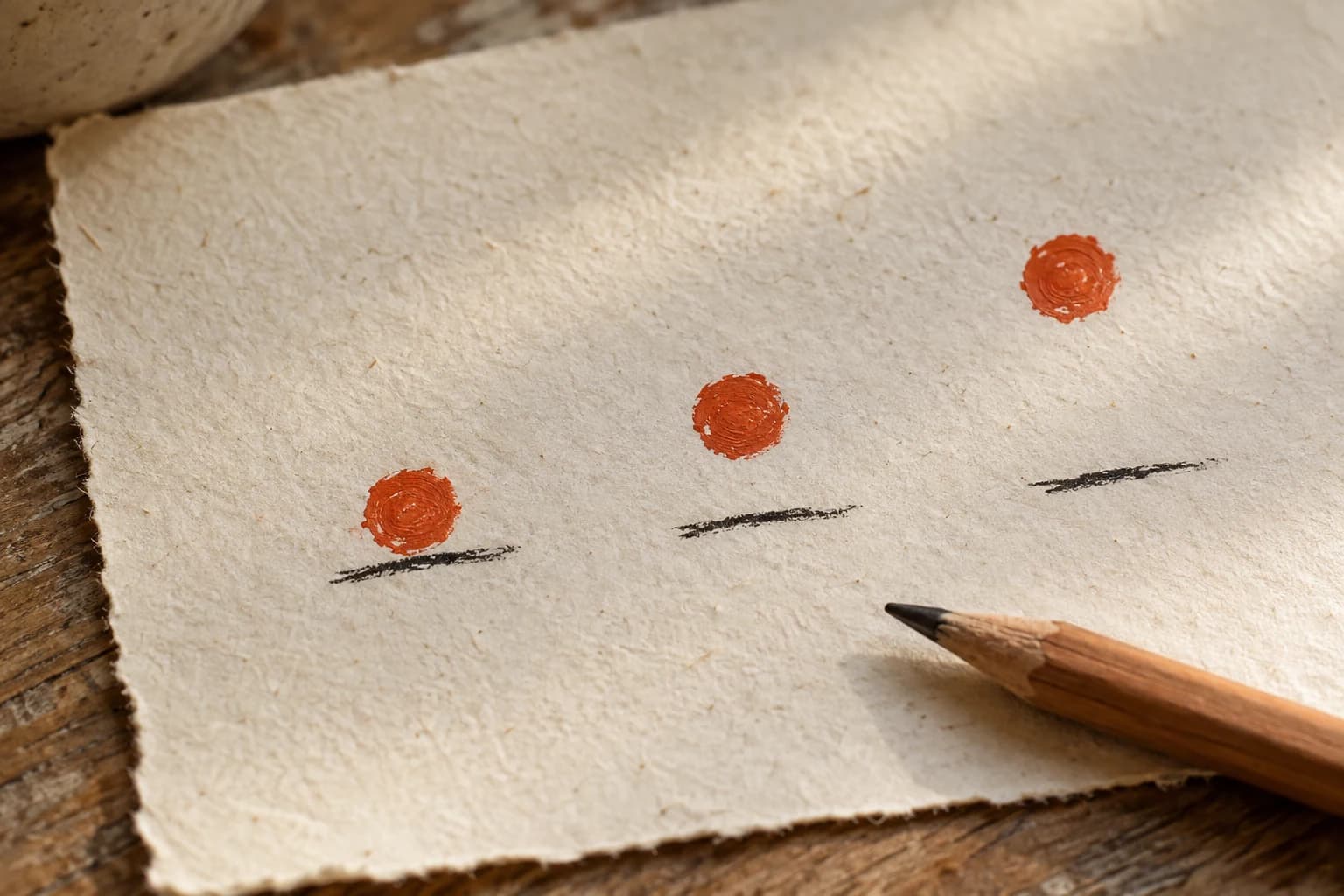
Try this: an orange dot drops, touches an imaginary floor, and rises again.
Keep the background plain and use one colour. A floor line is optional; you can simply leave the same empty space beneath the dot in each drawing. Avoid adding a face, shadow, or scenery until the movement interests you on its own.
Plan six poses before drawing: high, halfway down, low, touching the floor, halfway up, high again. These are creative constraints, not a required frame count or a promise of realistic physics. You are making something small enough to change without starting a large project.
Open the editor and choose a brush size and colour. Draw your first dot near the upper half of the white canvas. A little unevenness is welcome. The slight change in its outline can become part of the animation's character.
2. Build the sequence one frame at a time
Use Add + beneath the canvas for a new frame, then draw the dot a little lower. Repeat until you have the downward motion and a return towards the starting position.
The onion-skin control shows a faint version of neighbouring frames, which can help you judge where the next drawing belongs. If the ghost shapes become distracting, switch it off and compare the frames individually. Brush Ninja's interface guide explains the frame controls.
interface guideFor a deliberately hand-drawn result, redraw the dot each time. If you would rather keep exactly the same shape, duplicate a frame and use Select mode to move the drawing. Both approaches are useful; choose the one that makes the next edit easier.
Select modeNow press Play. Watch several repetitions before adding anything. Look especially at the join between the last frame and the first. If both show the dot in almost the same place, that moment may feel like a pause. Keep the pause if you like it, or adjust one of those poses.
3. Change the timing before adding detail
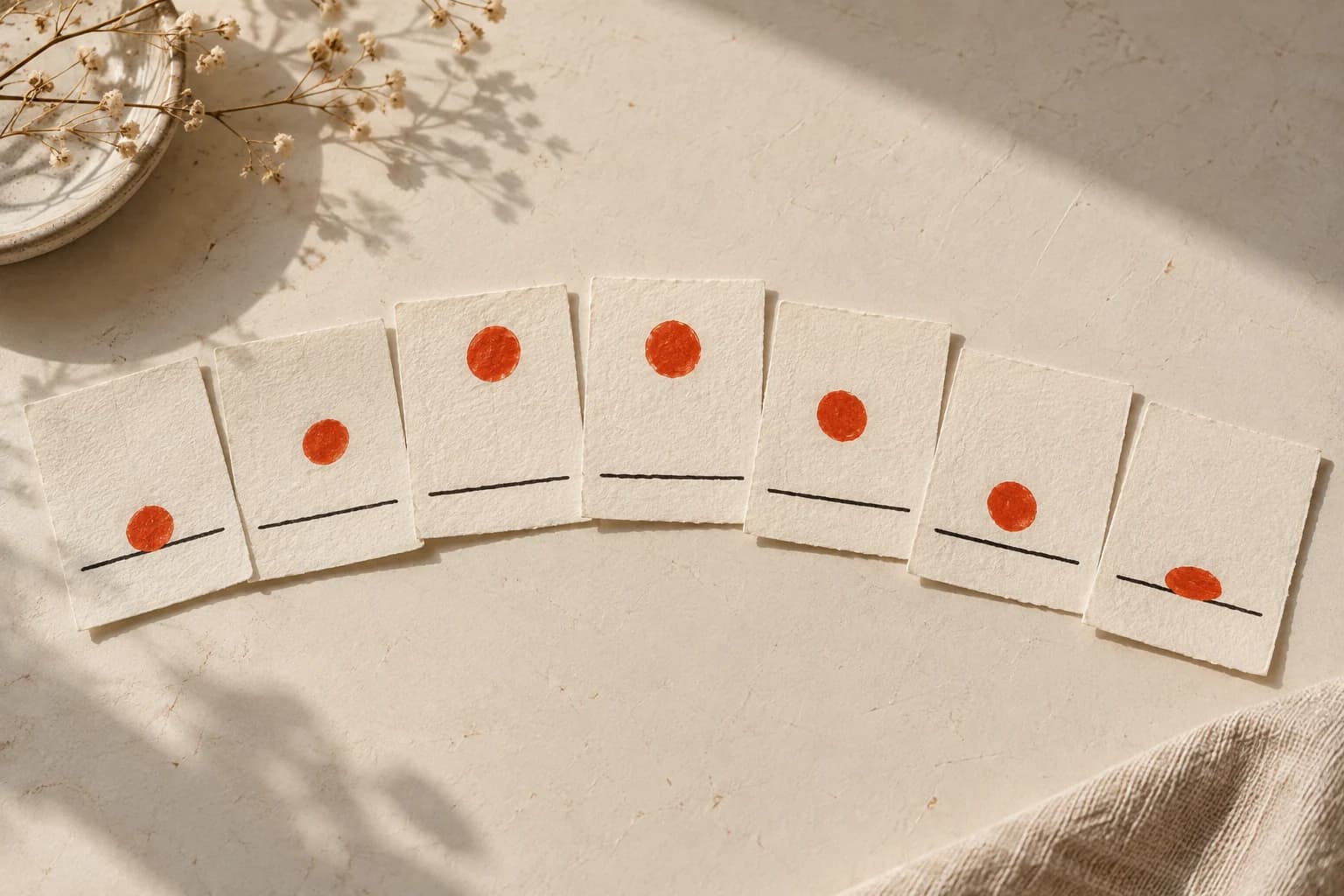
Open the speed-dial control near Play. Try a low frame rate, around four to six frames per second, as a starting experiment. Then compare a faster version. You are listening with your eyes: does the dot feel floaty, hurried, heavy, or simply hard to follow?
Brush Ninja also lets you change the duration of an individual frame with the + and − controls above it. Its FAQ explains that x2 holds a frame twice as long as x1. Try a longer hold near the top, then compare it with a hold near the floor. Leave the drawings alone so you can notice what timing changed.
FAQAfter that, make one drawing change: flatten the dot slightly in the frame where it touches the floor. Play again. If the squash is too dramatic, reduce it. If the motion already works without it, keep the simpler version.
There is no need to make every experiment an improvement. A useful first loop is one where you can explain why you kept one version.
4. Keep an editable copy and a GIF
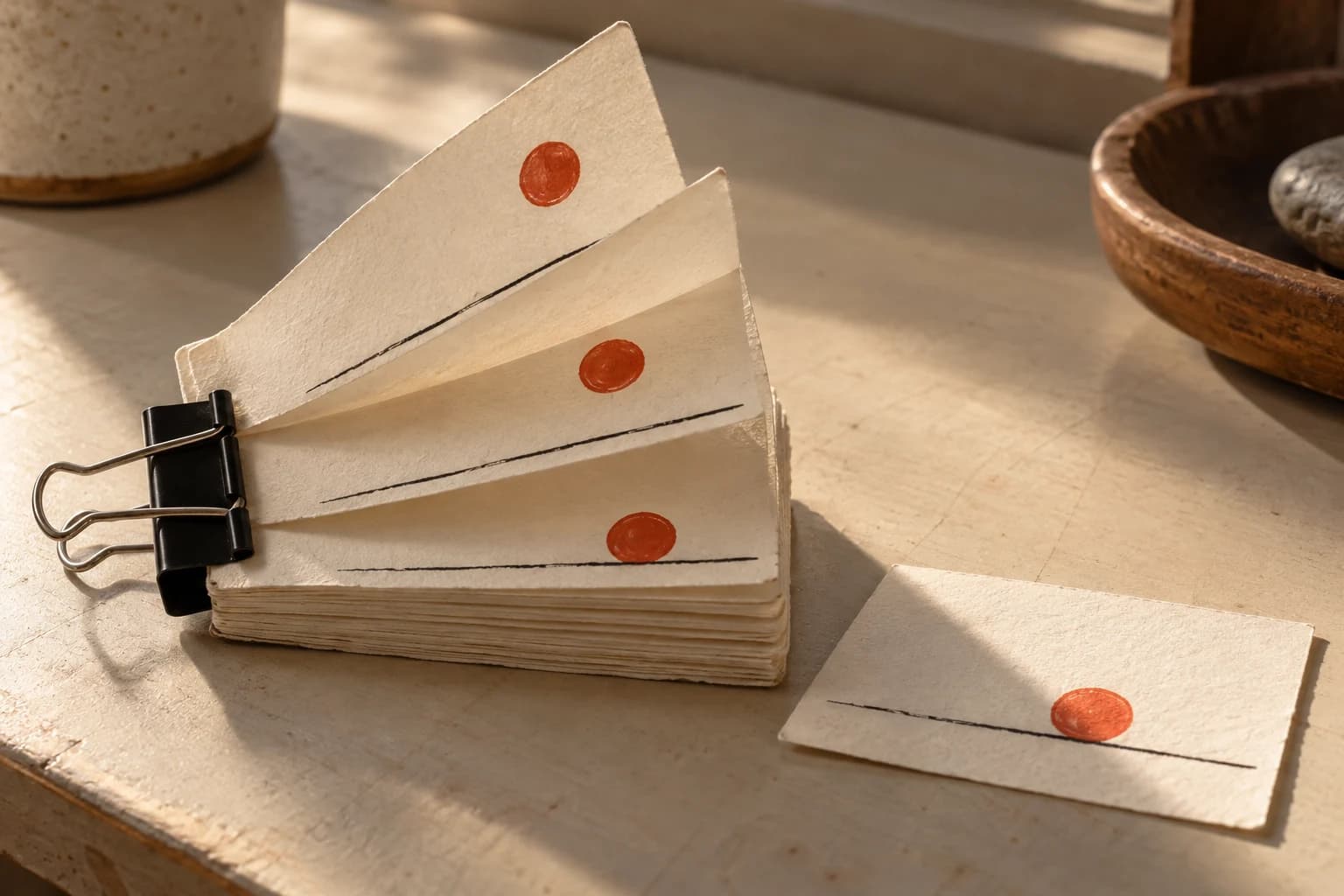
Use Save, give the animation a recognisable name, and choose Save File to download the editable .brushninja project. Brush Ninja's saving guide recommends keeping this file rather than relying on the browser's backup. Use Open when you want to work on it again.
saving guideThen choose Export and Export as GIF. The editor processes the animation and downloads a GIF. That is the moving image you can view or share; keep the editable project alongside it. The export guide covers the available formats.
export guideOpen the downloaded GIF and watch it through before calling the project finished. Check that the loop repeats as intended and that its background looks right. The free exercise here uses hand drawing and GIF output; paid membership adds extras, including video export with sound.
paid membershipWhen you come back, change just one thing: a slower fall, a smaller squash, or a longer pause. A tiny animation makes it possible to see what your choice did. That is a satisfying reason to make another.
Checked 6 October 2026. We drew a four-frame test in desktop Chrome, previewed it, used the speed control, and exercised the project-save and GIF-export flows. The site confirmed both downloads; reopening those files was not tested. We did not test mobile behaviour or paid features. The six-pose exercise is an original suggestion. Created with AI assistance; the accompanying AI-generated illustrations are conceptual artwork, not screenshots or exported Brush Ninja animations.