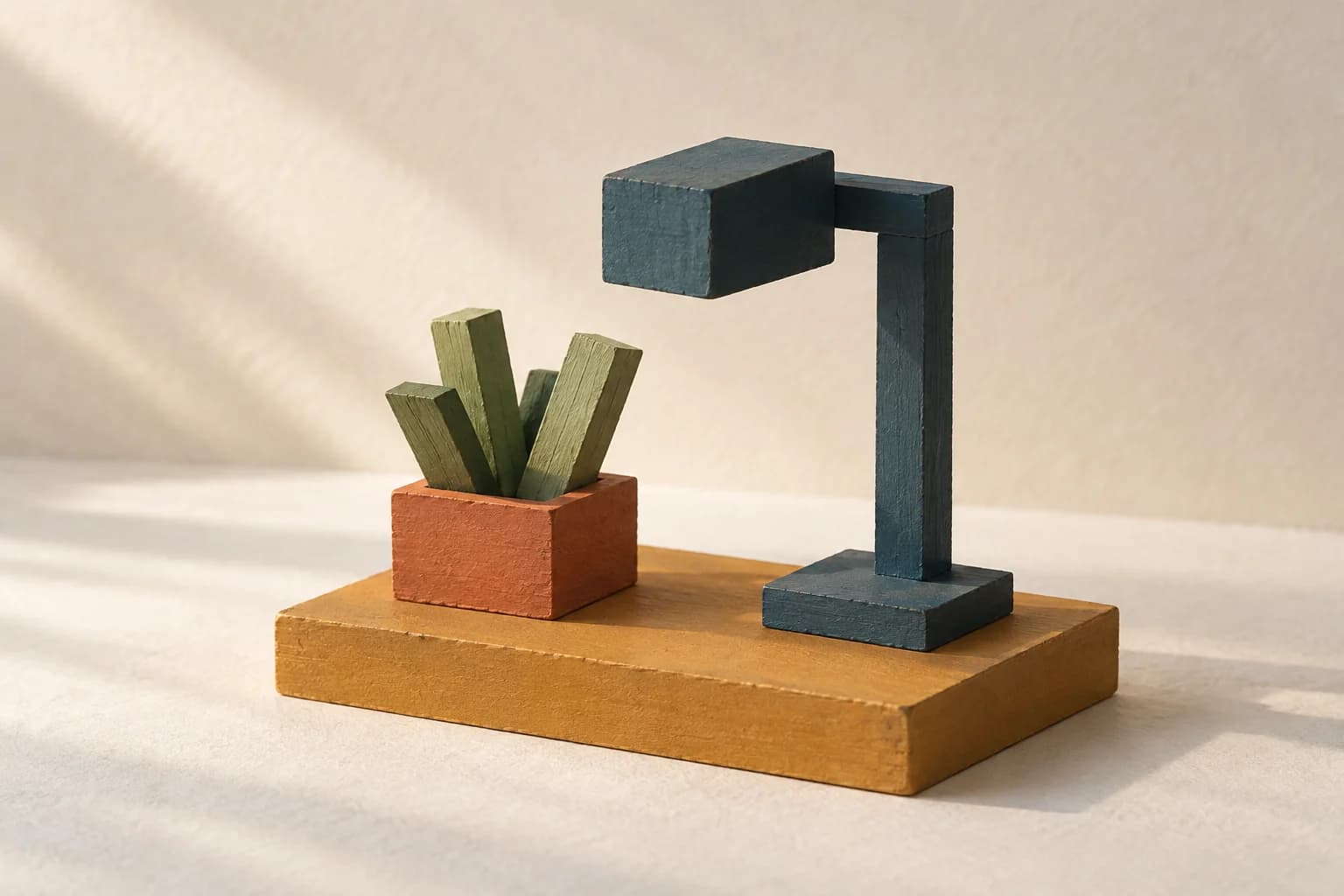
A shelf, a plant and a lamp: a small set of shapes to explore. AI-generated concept illustration, not a Blockbench screenshot or model output.
A small still life is a good excuse to try 3D. You can recognize the objects immediately, keep the shapes simple, and spend your attention on proportion: how tall should the lamp be, how much room should the plant have, and which angle makes them look good together?
Blockbench is a free, open-source 3D editor with an official web app, cuboid modeling and built-in texture painting. This original Biltib exercise starts with a shelf, adds a square planter and a blocky lamp, then finishes with an editable project and a small image. A desktop browser and mouse or trackpad are sensible starting tools.
Start creatingOpen the Blockbench web appThe browser editor linked from Blockbench’s official site.Before you begin: this is a documentation-based guide, checked against Blockbench’s official sources on 8 October 2026. We have not hands-on tested the exercise or its exports. The AI-generated pictures are concept illustrations, not screenshots or Blockbench model outputs; their wood grain, paint texture and soft lighting are not promised results.
1. Give yourself a small set of shapes
Open File → New → Generic Model. That gives this little standalone scene a suitable starting format. You do not need to choose a Minecraft-specific format or prepare a working game asset. Give the project a name you will recognize later, such as Tiny Shelf.
Set a modest target: nine rectangular parts. One for the shelf, one for the pot, three for the leaves, and four for the lamp. A plant made from sticks is enough. A lamp can be a foot, an upright, a short arm and a shade. Skip the cable, screws, soil and hollow pot for now.
Keep this sentence in mind while building: a low plant sits beside a slightly taller lamp. It gives you something to judge without asking you to reproduce an illustration exactly. If the scene is already readable with plain shapes, you have a useful foundation.
SourceBlockbench’s format comparisonGeneric Model supports general-purpose modeling and common 3D export formats.2. Build the shelf, then place two objects
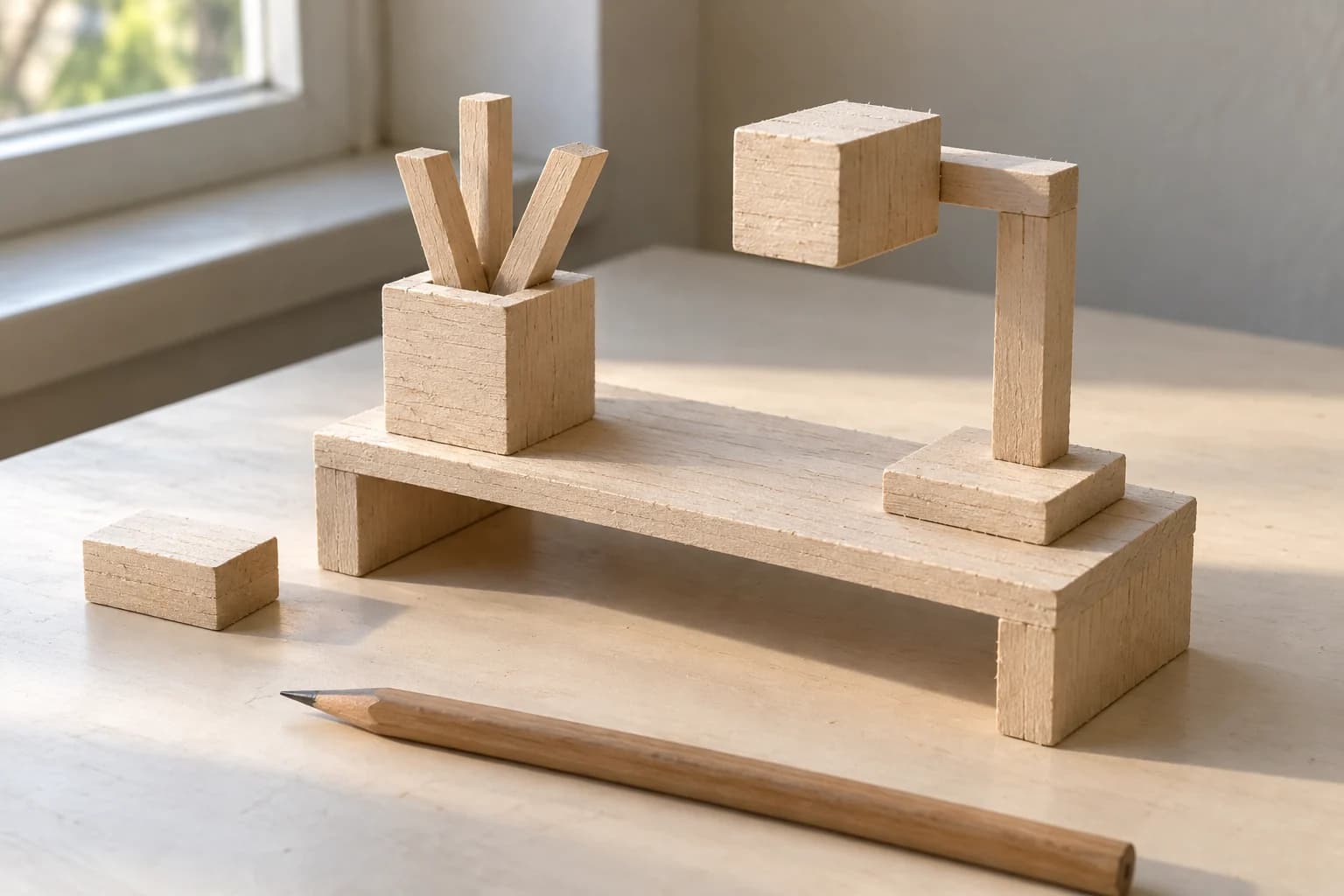
In Edit mode, right-click empty space in the Outliner and choose Add Element → Add Cube. Blockbench uses “cube” for rectangular cuboids too. Select a part and use Move and Resize, or its numeric position and size fields. Use the camera controls to look around; rotating the view is different from rotating an object.
For a starting shelf, try 24 units wide, 2 high and 12 deep. Treat these as proportions for an exercise, not physical measurements. Make it a simple slab. Put a 5 × 5 × 5 pot toward one end, resting on top. If placing it feels fiddly, look from the side to check where the two shapes meet.
Add three slim leaf blocks above the pot. Try each one about a unit wide and deep, with heights of four, six and eight units. Space their bases across the pot. They can remain upright in your first version: the changing heights already suggest growth. Later, try gently angling one leaf and compare the silhouette.
On the other side, build the lamp from a 5 × 1 × 4 foot, a narrow upright about ten units high, a short arm and a broad rectangular shade. Leave a visible gap between the lamp and plant. The exact numbers matter less than whether you can identify both objects from a little distance.
Name parts as you go: Shelf, Pot, Leaf Tall, Lamp Base. Then look from the front and from one side. If the lamp hides a leaf, move one object slightly forward. If everything feels crowded, widen the shelf before adding detail. Two small supports under the shelf are an optional extra once the nine-part version works.
SourceBlockbench’s controls and painting guideOfficial explanations of the Outliner, movement tools, numeric fields, Paint mode and screenshots.3. Give the objects a small, usable palette
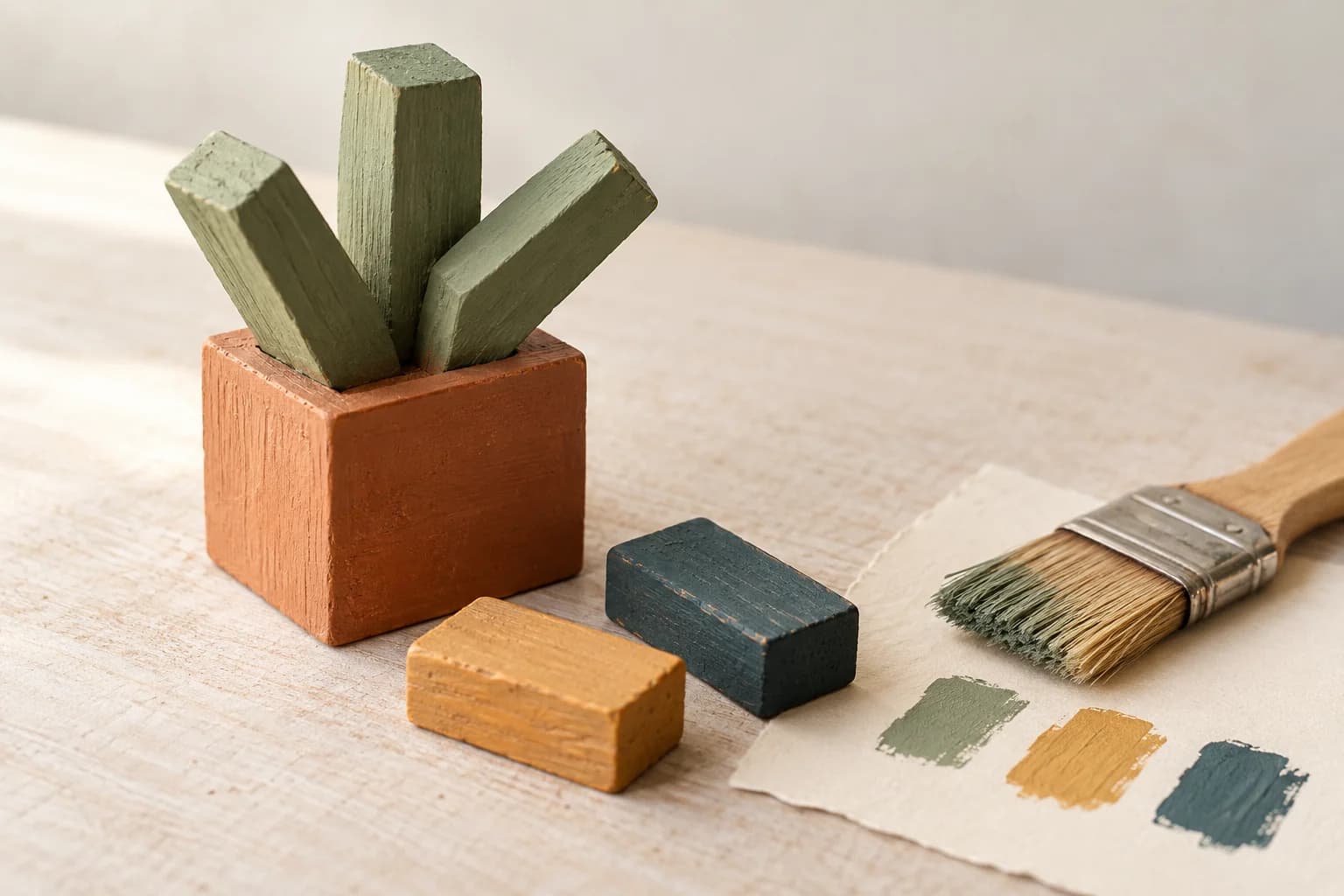
Choose four main colors: warm ochre for the shelf, terracotta for the pot, muted green for the leaves and dark teal for the lamp. These are suggested roles, so swap them freely. Keep one object darker than the others to help the small scene hold together.
Create an actual texture for those colors. Select all the model parts, use Create Texture in the Textures panel, and choose Texture Template. Enable Rearrange UV. If Keep Multi Texture Occupancy is shown, turn it off for this fresh template so existing overlap is not preserved. Make this choice before painting.
The template is a flat image with areas assigned to your model’s faces. In Paint mode, use Paint Bucket with a face or cube fill mode to give each object its color. Orbit around the scene and check the back as well as the front. Keep the first pass flat; one darker face or a tiny highlight can be a later experiment.
The editor’s Marker Color is for organizing parts, so do not rely on it as the texture you will take into other software. If painting the pot unexpectedly changes the shelf, check whether their faces share texture space before you keep painting. Save a copy before rebuilding a texture you have already worked on.
SourceBlockbench’s modeling and texturing featuresThe official site explains automatic UV templates and painting directly on the 3D model.4. Choose an angle and save something you can return to
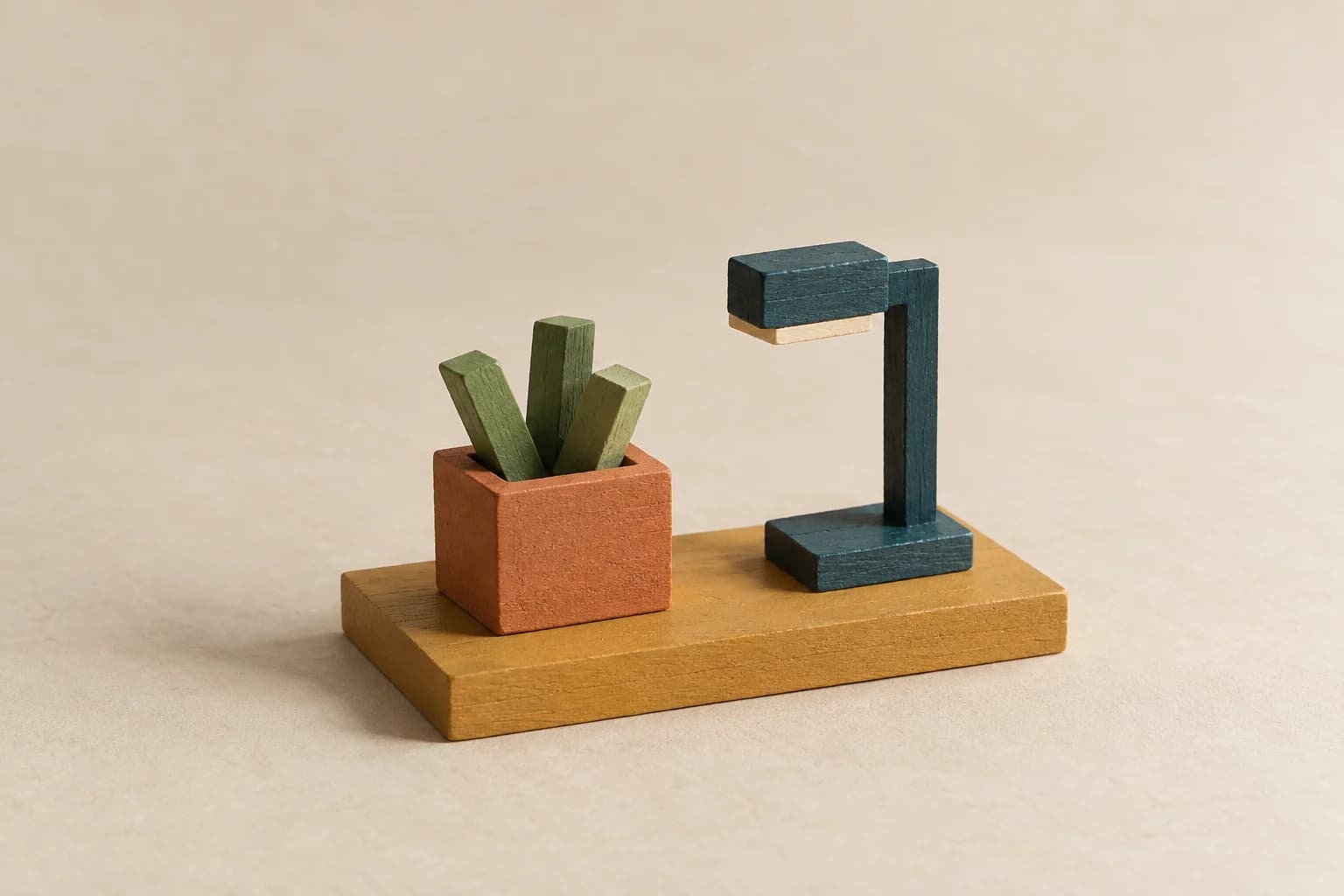
Try a three-quarter view that shows the front and one side of the scene. Give the lamp a little space above its shade and leave a border around the shelf. Zoom out until the whole arrangement is small. Can you still tell plant from lamp? If not, change their height, spacing or color before adding more parts.
Use File → Save Project or Save Project As to keep the editable .bbmodel project. Give it a recognizable filename, such as tiny-shelf-v1.bbmodel. After downloading, reopen it in Blockbench and check that the shapes and colors are there. That is a useful final check for your own session, especially when working in a browser.
For a shareable image, open the viewport’s Preview menu and choose Screenshot Model, then save the PNG. Open that image separately and check its framing. This gives you a view of your model; the little lamp does not need to cast realistic light. A pale underside on its shade can simply be another painted face.
SourceWhat the .bbmodel project file containsBlockbench’s editable project format preserves the working model for later changes.5. Make the next version by changing one decision
Keep the first scene, then make a second version with one clear change. Shorten the lamp. Spread the leaves. Try a blue pot instead of a terracotta one. Compare the two images at the same size and angle. You will learn more about that decision when everything else stays familiar.
If you want to use the scene in another 3D tool, Blockbench also offers glTF and OBJ exports. glTF can carry textures and model hierarchy; OBJ has different limitations. Choose the format your next tool accepts and check the imported result there. Keep the .bbmodel project as well, because an interchange file serves a different job.
SourceChoose a 3D export formatThe official guide compares glTF, OBJ and other formats, including what they preserve.For another small creative project, try making a tiny browser game with Bitsy. If choosing a visual direction is the part you enjoy, the moodboard-to-finished-design kit gives you another way to turn references into a finished piece. For this scene, a recognizable plant, a lamp and two saved files are already a satisfying place to stop.
Keep makingMake a Tiny Browser Game with BitsyBuild another small creative project with a clear finish line.Keep makingMoodboard to Finished Design Free KitTurn saved inspiration into a visual direction and a finished piece.Source and testing note: official documentation and current interface source informed this guide. Browser operation, the nine-part exercise, saved-file reopening and export appearance were not tested by Biltib for this article. Blockbench’s FAQ notes that browser security restrictions can add import/export steps and that imported textures may need manual loading. Created with AI assistance; all four accompanying images are AI-generated editorial concepts.
SourceBlockbench web-app requirements and limitationsOfficial notes on WebGL support and browser-specific import/export behavior.