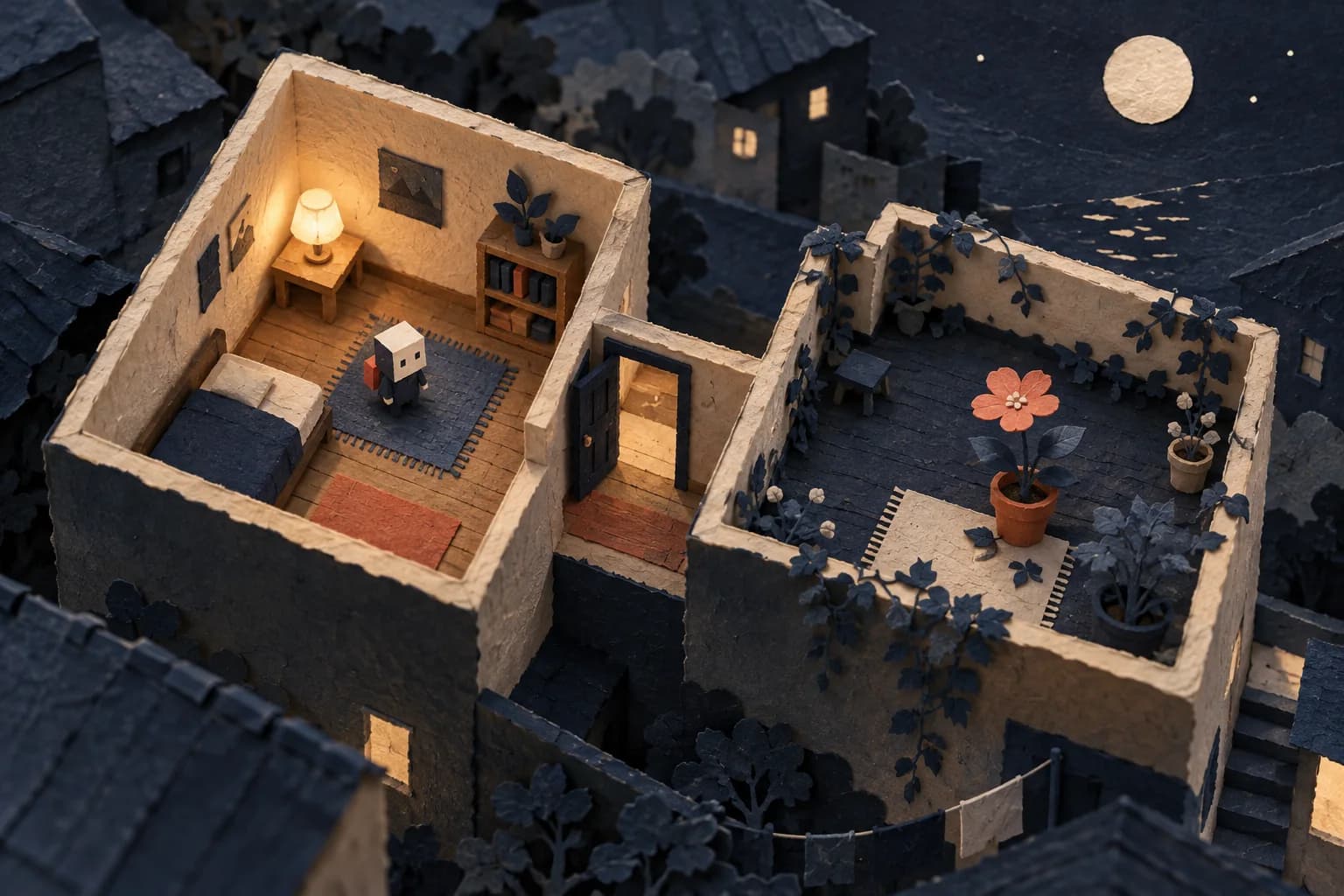
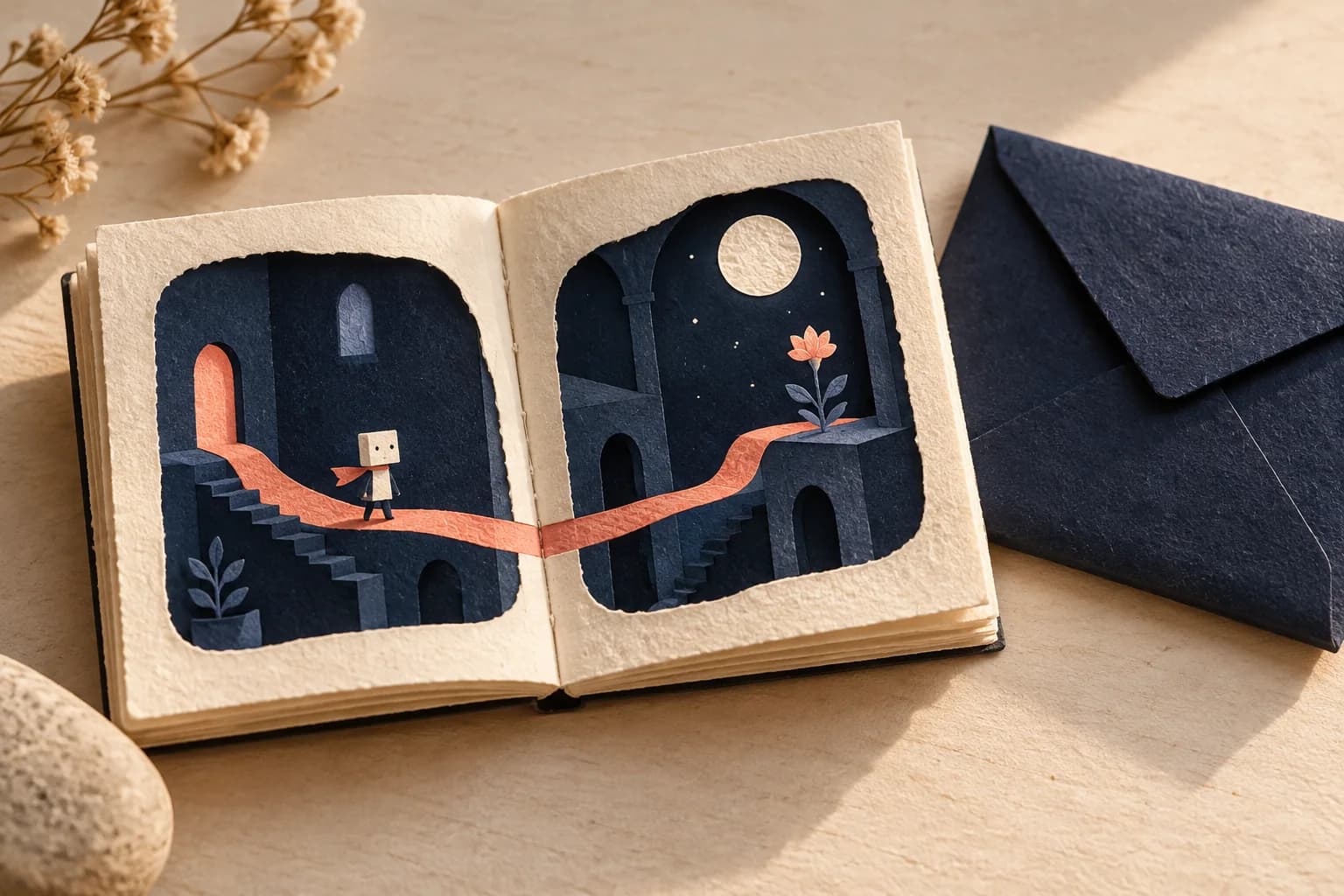
A whole story can fit inside two rooms. Original AI-generated editorial illustration.
Someone has left a light on. A neighbor says the rooftop flower only opens at night. You walk upstairs to see it. That is enough of an idea to begin.
Bitsy, created by Adam Le Doux, is a browser-based tool for making small games about places, people and conversations. You draw the world, give its characters a few words, and decide where a walk through it should end. The official overview is a useful map of the editor.
BitsyAdam Le Douxofficial overviewOur starting brief is The Rooftop Bloom: a room, a rooftop, one neighbor and one ending. The paper worlds in this article are conceptual illustrations. Your game will use Bitsy's own pixel drawings.
1. Give the player one reason to move
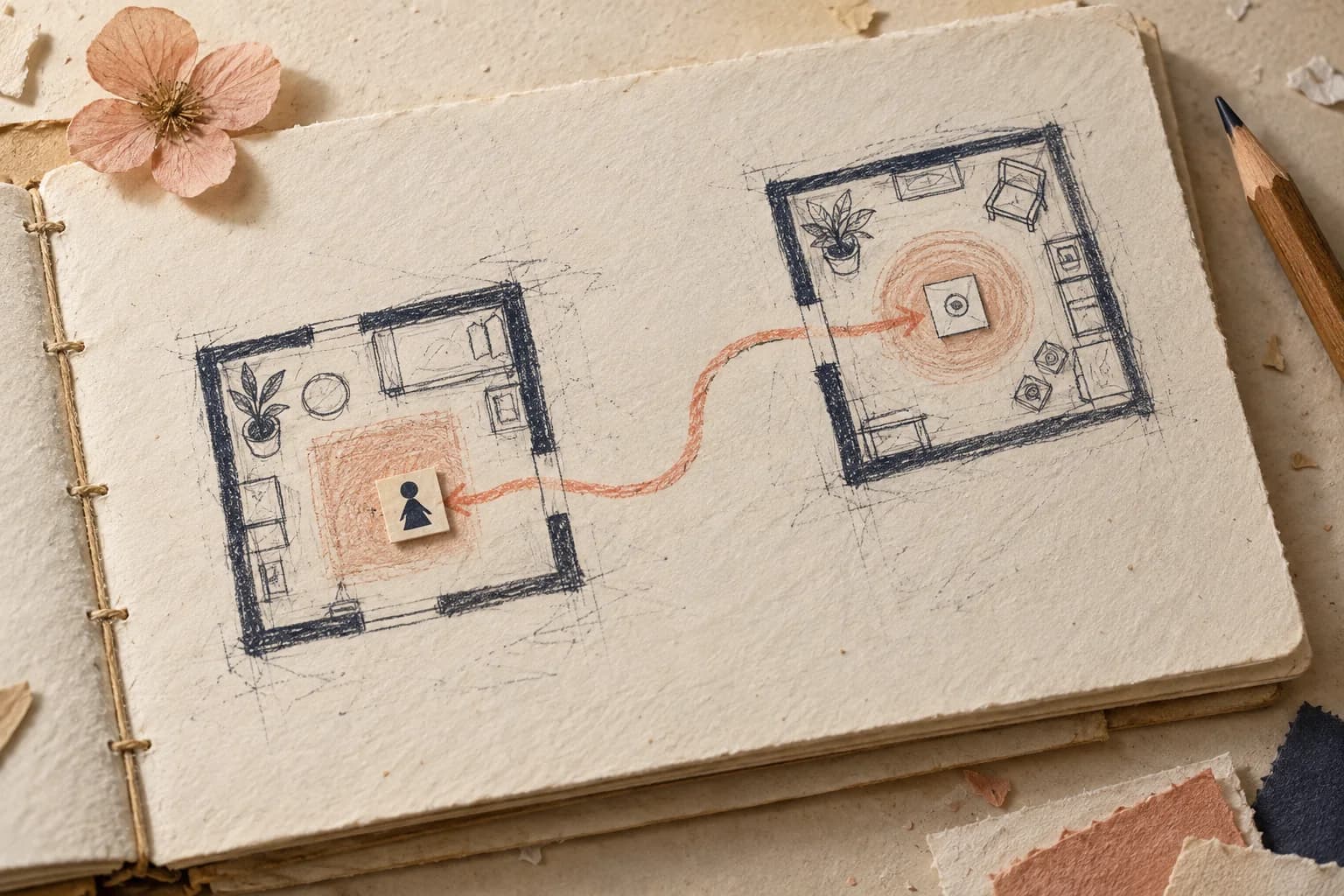
Write down three things before opening the editor:
• Where you begin: a quiet room after dark
• What draws you onward: a neighbor mentioning a flower upstairs
• What finishes the walk: reaching the rooftop and finding it open
Keep the first version to those beats. A secret garden, a lost umbrella or a last visitor to a library could use the same structure. Choose a moment you can describe clearly; give yourself permission to leave the rest of the world outside the frame.
Open the Bitsy editor. This guide assumes a computer with a keyboard. If you already have work there, export a backup before changing anything. For a clean starting point, choose Game → Save → New game. This replaces the current project with the default room, so save existing work first.
Bitsy editorEdit the game title at the top; it appears when play begins. If the tool bar is hidden, open Tools. Keep the starter avatar. As you arrange the room, remove any starter objects you do not want in your scene.
2. Make one room easy to walk through
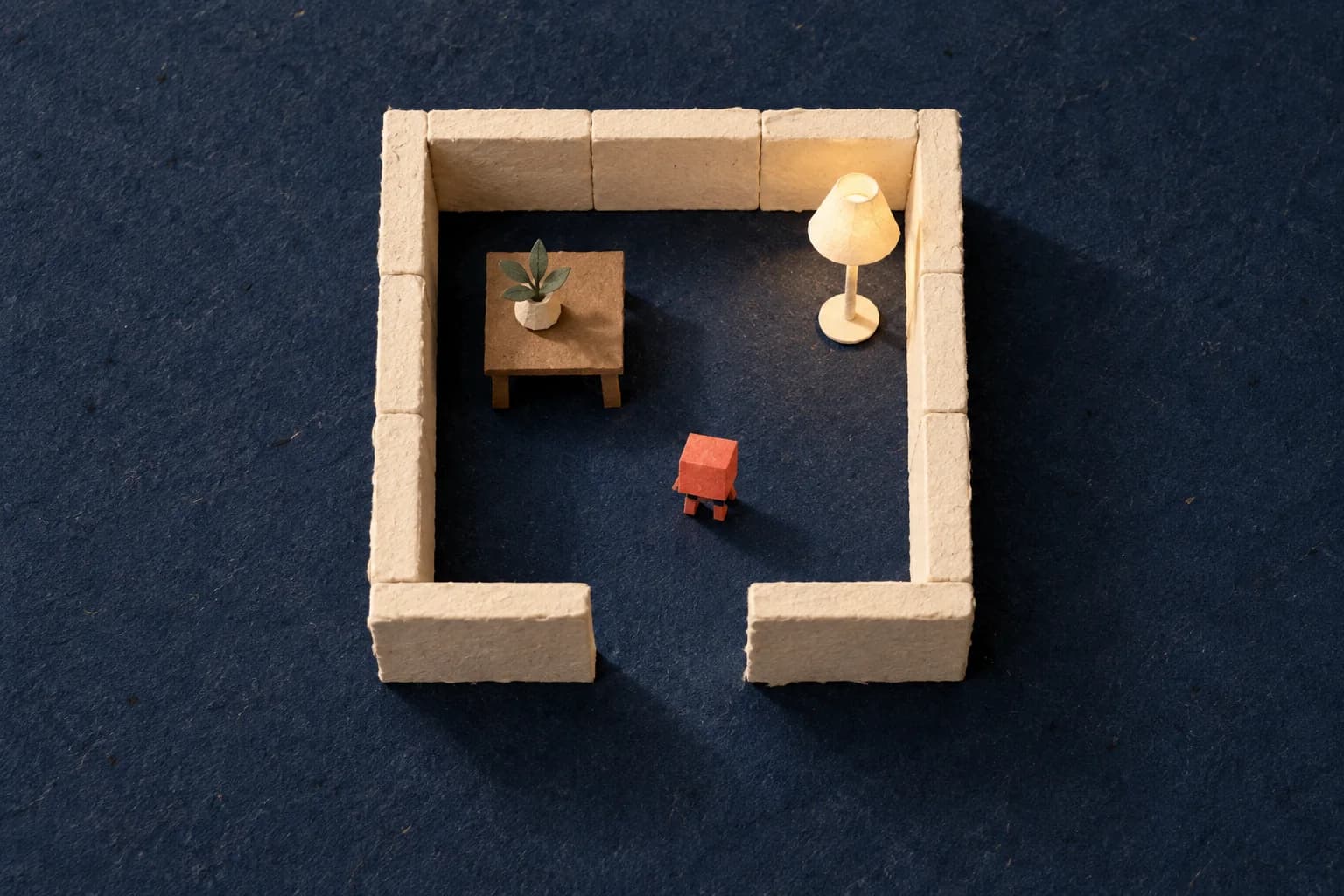
Bitsy rooms use a 16-by-16 tile grid. Start with a boundary, a doorway gap and one recognizable detail, such as a lamp. Large simple shapes will be easier to read than a room full of tiny furniture.
16-by-16 tile gridUse Paint to select or draw a tile. Clicking a pixel switches it on or off. Then select the Room tool's paint-editing mode and click the room squares where you want that drawing. The Room Editing Tools guide shows the placement controls.
Room Editing Tools guideA tile's appearance and its behavior are separate decisions. In Paint, mark boundary tiles as wall so the avatar cannot walk through them. Use a different tile drawing for walkable decoration: the wall setting applies to every placement of that drawing. Leave the doorway and walking route clear.
PaintPress Play now, before furnishing the rest. Use the arrow keys or WASD to move, then Stop to return to editing. Can you reach the doorway? Do the walls stop you? If the layout is confusing, remove something before adding more.
3. Let one neighbor point the way
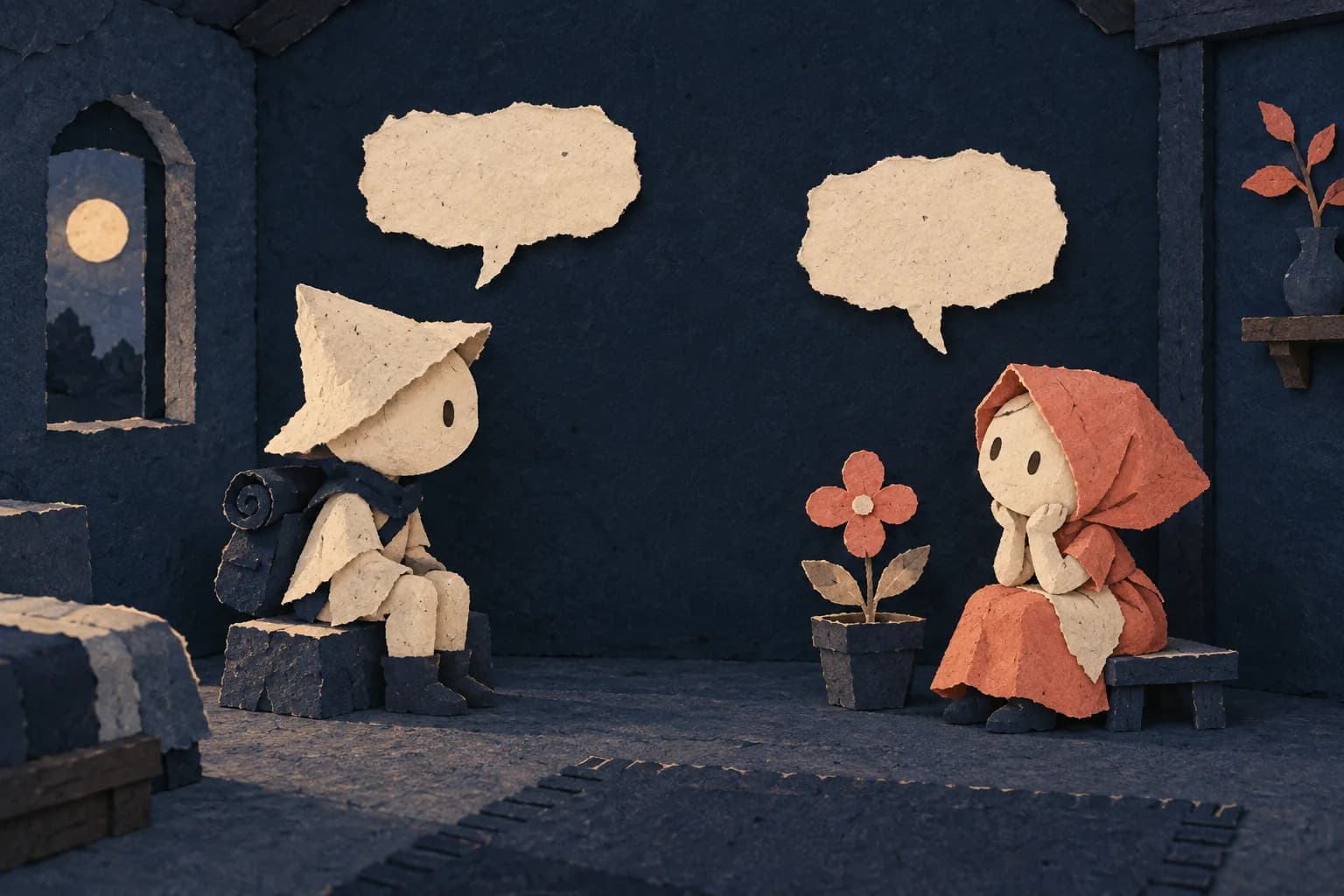
In Bitsy, a sprite is a person or object you can talk to. Choose or create one in Paint, draw a simple neighbor and place them beside the route. Keep enough empty space around them for the player to approach.
Add this original line in the sprite's dialog field, or write your own: “The rooftop flower opens after everyone goes to sleep. Take a look.”
Walking into the sprite triggers its dialogue. Any key advances it. The Sprite Paint guide explains the drawing and dialog controls; the input reference covers movement and dialogue.
Sprite Paint guideinput referenceRead the line aloud. It should suggest where to go and sound like someone who belongs in this place. For this first version, one clear sentence will do.
If the neighbor seems to move when you place another: each sprite exists once in the world. Create or duplicate a sprite if you want a second character with the same appearance.
4. Connect the rooftop and give it an ending
Use the Room tool's Add room control to make the rooftop. Draw its boundary and a flower, leaving a clear place to arrive and a short route toward it. The flower can be a decorative, non-wall tile.
Open Exits & Endings. Add an exit to connect the first room and the rooftop. A normal exit works in both directions; a one-way exit only works from its starting point.
To place a marker visually, first navigate to the intended room in the Room tool. Use the relevant marker's Move control, then click the square where it belongs. Put the first marker in the doorway and its partner on a clear square on the rooftop. The official exit guide shows both endpoints and their controls.
official exit guideWith the rooftop selected, choose Add → Ending in Exits & Endings. Move its marker onto a reachable square beside the flower, away from the arrival square. Open its options and choose Add narration. Try: “One small flower. The whole roof smells like morning.” This ending is simply a destination; our first game does not need a key, inventory check or locked door.
Play from the beginning. Talk to the neighbor, reach the rooftop, walk back once to check the connection, then approach the flower. If the game ends too early, move the ending away from the arrival square. If you cannot reach it, look for a wall tile or a character blocking the route.
5. Save something you can come back to
Open Game → Save → Save game to download an HTML file. Open that saved file in a browser to play outside the editor. Load game can bring the HTML back into Bitsy for editing. You can also use Save data to keep a separate .bitsy data backup. These options are documented in Bitsy's Save guide.
Bitsy's Save guideGive each milestone a useful name, such as “rooftop-bloom-v1.html.” Keep a copy before importing other data or starting a new project: those actions can replace your current work. Browser storage is convenient, but clearing browser data can remove it.
Before sharing your file, check four things:
• The saved game opens and shows the title you intended
• The route is understandable without you explaining it
• The conversation, doorway and ending all work
• You have kept a backup you can reopen for editing
Ask one person to try the saved version. Watch where they hesitate. Change one thing, export again, and stop when the little journey feels complete.
You can later upload a game to a hosting service, but a working saved file is already a useful finish line. Use your own drawings and words, or obtain permission for anything you borrow.
Keep making: try a small hand-drawn animation, or collect the atmosphere for your next game in a focused moodboard.
small hand-drawn animationfocused moodboardEditor instructions checked against Bitsy's official documentation on 7 October 2026. This walkthrough has not been hands-on tested. All five images are original AI-generated conceptual illustrations, not editor screenshots or examples of Bitsy's output.